Chapter 2
Getting started with the terminal
Half an hour, and nothing breaks. The first three words, permissions, and what to do when it goes wrong.
Thirty minutes, and nothing breaks
Before we start, let us put the fear away, because it is the only real obstacle in this chapter.
The terminal is not dangerous in itself. It is about as dangerous as your kitchen: you can cut yourself, but only if you pick up the knife and use it badly. Looking, going into folders, asking what is inside, counting files: none of these can break anything, ever. In this whole chapter there will be two commands only that can really do damage, and when we get to them you will find them inside two thick-bordered boxes.
The other fear, the deeper one, is looking stupid in front of a black screen. Get rid of it like this: the terminal does not judge you, it has no memory of your embarrassments, and it expects nothing from you. If you type something meaningless it answers with a line of error and goes back to waiting. It is the most patient thing you have in the house.
By the end of these pages you will be able to do four things. You will not become an expert, and you do not need to. Something else is needed: that when you watch the AI work, you understand what it is doing.
What you take home from this chapter
- moving between folders without a mouse, and always knowing where you are;
- creating, copying, moving and deleting things;
- reading any command and understanding how it is put together;
- knowing which are the only two things that can do damage.
Here the ◎ boxes matter more than elsewhere, because this is stuff you learn with your fingers, not with your eyes. Keep the terminal window open next to the book and do each thing as you read it.
Opening the service entrance
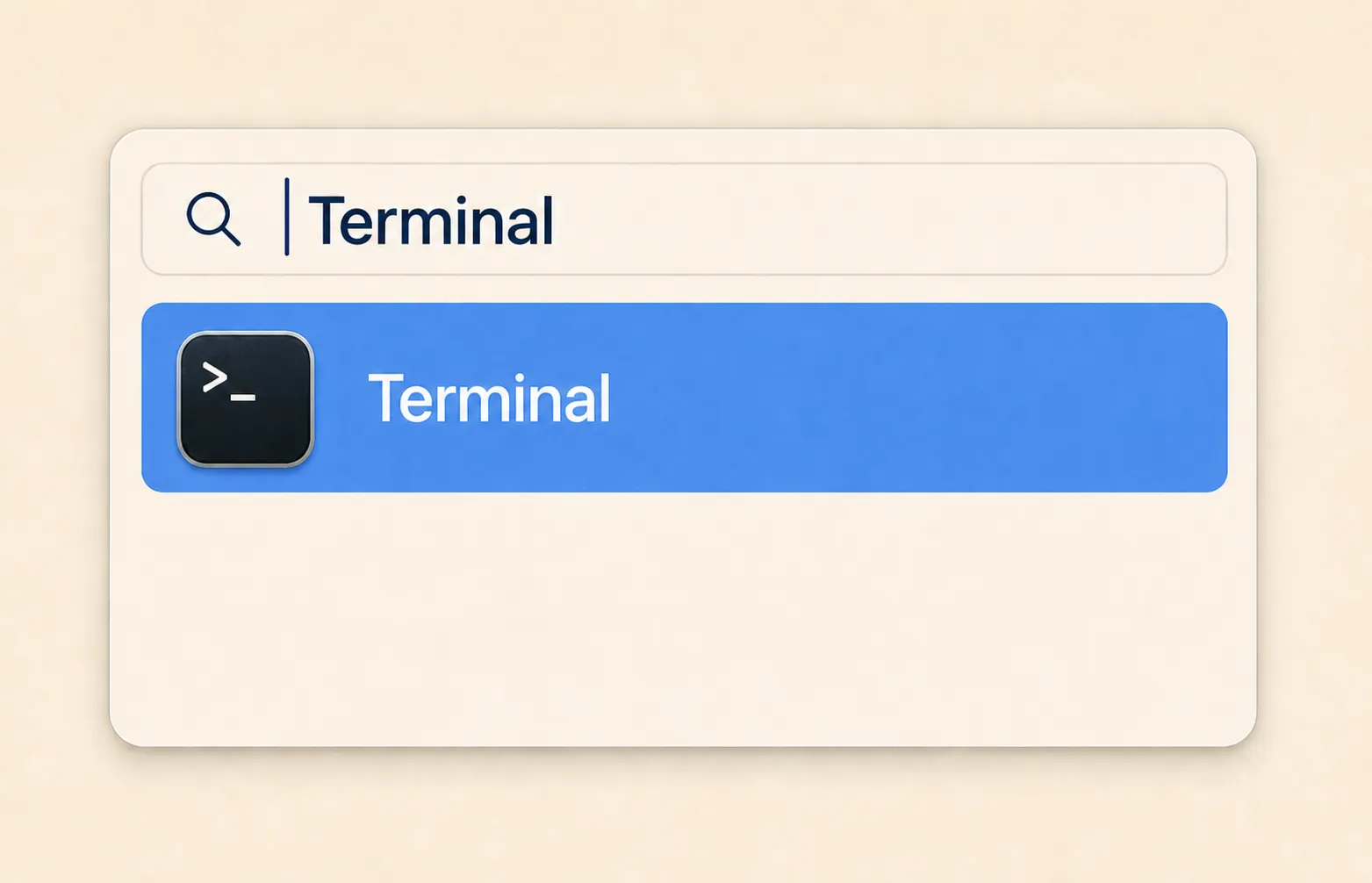
On a Mac. Press Cmd + Space, type Terminal, press Enter. A white or
black window opens with two lines of text in it. You are in.
On Windows. Press the Windows key, type Terminal (on older versions
PowerShell) and press Enter. Your terminal speaks a different dialect from the
Mac and Linux one: the concepts in this chapter are identical, and most of the
commands you will see work there too, but three of the ones we will use do not.
Read the box below before you start, so you do not spend half an hour wondering
what you are doing wrong: you are not doing anything wrong.
On Linux. You already know.
When you are done, type exit and press Enter: the session closes. You can also
close the window like any other application.
What you are looking at
Inside the window there is something like this:
gianclaudio@MacBook-Air ~ %This line is called the prompt, which means an invitation to speak. It is the machine telling you: I am here, tell me.
Let us read it piece by piece, because every piece is information you will need:
gianclaudiois who you are, that is, the user you logged in as;MacBook-Airis where you are, that is, which machine;~is the folder you are in right now (that tilde is an abbreviation, we will see of what shortly);%is the mark separating the information from what you type. On other systems you will find$instead of%. It makes no difference.
Who, where, in which folder. The terminal repeats it on every line, for the whole session, because these are the three things you must always know.
And here is the idea that holds up the whole chapter, the one you never had to think about in the icon interface:
In the terminal you are always in a precise place. You are not looking at the computer from above. You are inside a folder, like someone standing in a room of the archive. The commands you give apply there, in that room, unless you explicitly say otherwise. Before any operation, the right question is always the same: where am I now?
This is not pedantry. It is the number one reason beginners get lost, and it will also be the reason you occasionally cannot find the files the AI created.
The first three words
The minimum vocabulary for moving around is three words. Let us learn them by watching them work.
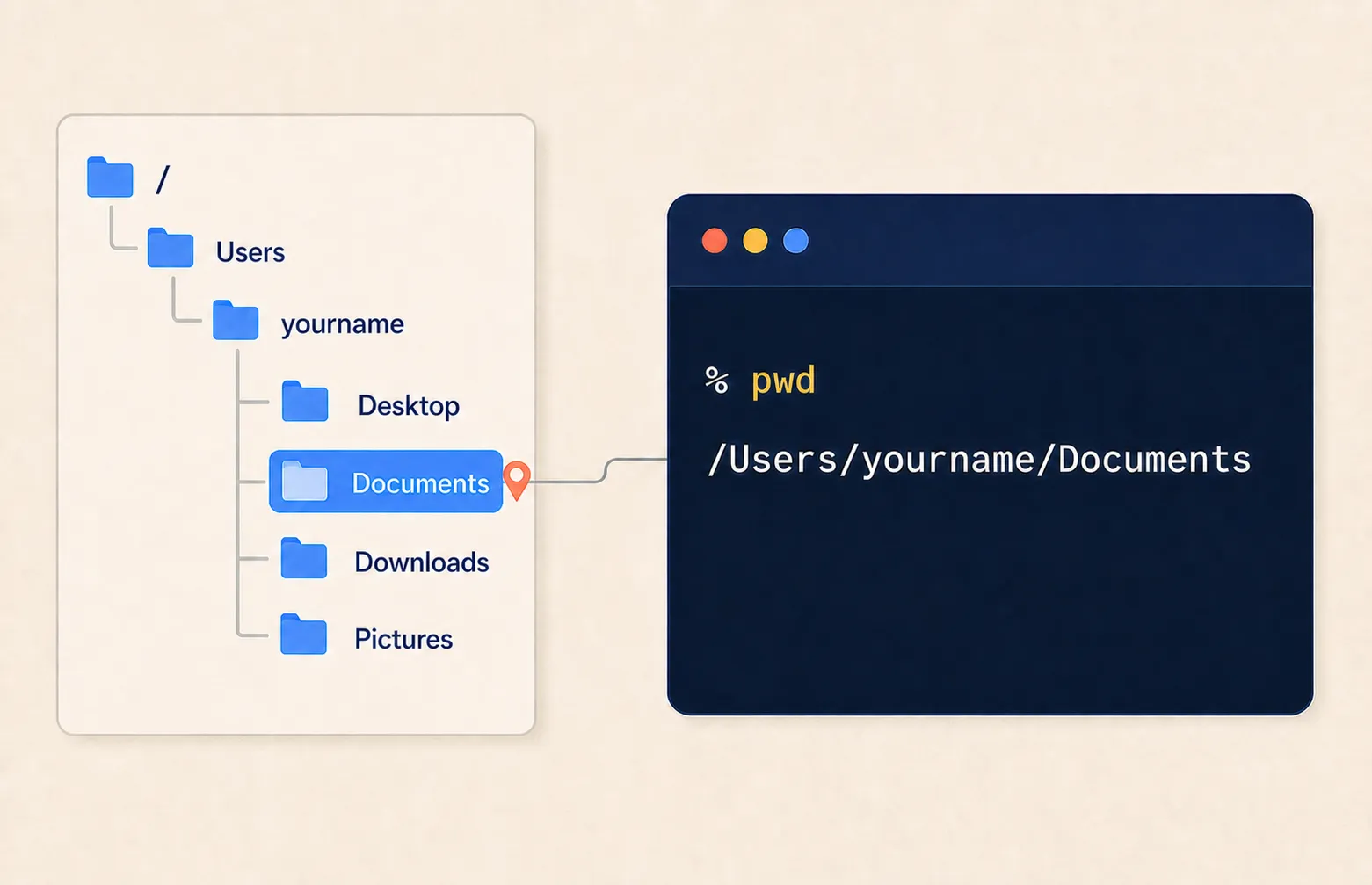
pwd, meaning “where am I”
Type pwd and press Enter.
% pwd
/Users/gianclaudio
It answers with the full path of the room you are in. It is exactly the kind of address from the previous chapter. It stands for print working directory, but the name does not matter at all.
And you discover something else: that ~ in the prompt was an abbreviation for
/Users/gianclaudio, that is, for your home folder. The tilde always means “my
home”. Wherever you are, cd ~ takes you home.
ls, meaning “what is here”
% ls
Applications  Desktop  Documents  Downloads  Movies  Music  Pictures
ls stands for list. It lists the contents of the room you are in. It is the
eye.
cd, meaning “let’s go”
% cd Documents
% pwd
/Users/gianclaudio/Documents
cd stands for change directory. It is the step.
Three variants to know straight away, because they are the ones you will use ninety per cent of the time:
cd Documentsgoes into a folder that is inside the one you are in;cd ..goes back one level, towards the trunk of the tree. Those two dots mean “the folder that contains me”;cdon its own, orcd ~, takes you home from wherever you got lost.
Dwell on cd .. for a moment, because it is the closest thing to a “back”
button you will find in here, and knowing you have it removes the anxiety of
ending up somewhere there is no way out of. There are no places there is no way
out of.
Three tricks that change your life
Before going on, three things that are not commands but habits. People who use them go five times faster than people who do not know them, and nobody teaches them.
The Tab key completes words. Type cd Doc and press Tab: the terminal
completes it by itself into cd Documents/. If there are several
possibilities, press Tab twice and it lists them. You never need to type a
file name in full, and above all you stop mistyping it. Pick this habit up
today: type the first three letters and press Tab, always.
The up arrow fishes back commands you already gave. Press it repeatedly to go back through the history. Correct the line and press Enter again. You need it constantly, because in the terminal you almost always work by repeating a command with a small variation.
And then the nicest trick for anyone coming from the world of icons:
You can drag a folder from the Finder into the terminal. Type cd, leave a
space, take the folder from the Finder window and drag it onto the black window.
The full path appears, written for you. It is the bridge between the graphical
interface and the terminal, and you need it every time a folder is buried deep.
It is the distinction from chapter 1 made practical: you do not have to remember
the path, you just have to know how to get it and check it.
Creating, copying, moving
So far you have only looked. Now let us build something. We will stay in the
mum-birthday folder you created at the end of the previous chapter, or create
it now if you did not.
% cd ~/Documents
% mkdir mum-birthday
% cd mum-birthday
mkdir stands for make directory: it creates a folder.
% touch guest-list.txt
% touch gift-ideas.txt
% ls
gift-ideas.txt   guest-list.txt
touch creates an empty file. The name is odd and has a history of its own that
does not concern us: it is there to bring a file into existence out of nothing.
% cp guest-list.txt guest-list-old.txtcp copies: first you say what, then where or how.
% mv gift-ideas.txt gifts.txtmv moves, and since moving a file inside the same folder under a different
name amounts to renaming it, mv is also the command for renaming. It is one of
those things that seem strange at first and obvious two days later.
With six words (mkdir, touch, cp, mv, plus ls and cd which you
already know) you can already do everything you do with the mouse when you
organise folders. One is missing, and it is the one with the thick border.
The anatomy of a command
You will have noticed that some commands had extra pieces. It is worth stopping for thirty seconds on the grammar, because it is always the same, and recognising it means being able to read any line, including ones you have never seen.
ls -l DocumentsThree pieces:
- the command:
ls, the verb, what I want to do; - the options:
-l, the adverbs, how I want to do it. They almost always start with a hyphen; - the arguments:
Documents, the object, what I want to do it to.
Verb, adverb, object. End of grammar.
Try ls -l:
% ls -l
total 0
-rw-r--r--  1 gianclaudio  staff   0  25 Jul 07:12  gifts.txt
-rw-r--r--  1 gianclaudio  staff   0  25 Jul 07:14  guest-list.txt
The same things as before, told at length: permissions, owner, group, size in bytes, date, name. We will come back to it in two sections, when we talk about users.
Options can also be stacked: ls -la means “list in long form and show hidden
files too”. Hidden files are the ones whose name begins with a dot, and there
are quite a few in your home: they are almost all configuration files for
programs. The computer hides them so as not to frighten you.
The real power: slotting words together
So far the terminal looks like an awkward way of doing things you do better with the mouse. Fair enough. The leap is somewhere else, and it is two symbols.
The asterisk means “anything”.
ls *.jpg“List me all the files ending in .jpg”. The asterisk stands for any sequence
of characters. photo-* is every file starting with photo-. With this you can
talk about groups of files instead of one at a time, and here the difference
from the mouse begins.
The vertical bar passes the result to the next command.
ls *.jpg | wc -lIt reads: list all the jpgs, and pass that list to wc -l, which counts lines.
Result: how many photos there are in this folder. That | symbol is called a
pipe, and it is one of the most elegant inventions in computing: every command
is a little utensil that does one thing, and the pipe lines them up like an
assembly line.
That is why twenty words are enough in the kitchen. It is not the vocabulary that counts, it is the combinations.
And now the debt I have owed you since the previous chapter. The 4,000 photos to be renamed with the date in front, four days of clicking:
for f in *.jpg; do mv "$f" "$(stat -f "%Sm" -t "%Y-%m-%d" "$f")-$f"; doneOne line. Two seconds.
You do not have to understand it and you do not have to learn it: the AI will
write it for you, and it is exactly the kind of thing you will use it for. But
look at it for a moment, because there is nothing in it you do not already know:
there is mv, which moves and renames; there is *.jpg, which is all the jpgs;
and there is a for, which means “for each of these, do what follows”.
And now the important detail, the reason I made you read the line. That stat
takes the file’s modification date, which is not the date the photo was
taken. If you copied those photos from an old disk in 2019, they will all be
renamed 2019. The command is correct and does the wrong job.
That is the whole chapter in one sentence: you do not need to be able to write that line, you need to be able to read it well enough to notice that the date is the wrong one. What you say next (“no, use the EXIF capture date”) is your work, and nobody can do it for you, because you are the only one who knows what you actually wanted.
Who you are, and what you are allowed to do
Last piece, and we close the circle with the doorkeeper from the previous chapter.
% whoami
gianclaudio
The computer always knows who is sitting there. Every user has their own home
folder in /Users, their own settings, their own things, and cannot put their
hands in anyone else’s. Even if you are the only human being who touches this
keyboard, to the system you are one possible user among others, and that is why
there is a /Users folder, plural.
Let us go back to that line from before:
-rw-r--r-- 1 gianclaudio staff 0 25 Jul 07:14 guest-list.txtThat string of letters at the beginning is the permissions, and they are read in groups of three after the first character:
rw-what the owner can do: read (r), write (w), not execute (-);r--what their group can do: read only;r--what everyone else can do: read only.
Every single file on the system carries, written on it, who can read it, who can change it, who can run it. It is a fifty-year-old idea and it is still the reason a program downloaded by mistake cannot, on its own, rewrite the operating system.
And then there is the magic word.
Why am I telling you all this? Because when you let the AI work on your computer, it will work as you: same user, same permissions, same perimeter. It is not an entity floating above the machine, it is a tenant using your keys. Knowing how far those keys reach is what will let you give it room without being anxious about it, which is exactly where this book is heading.
When something goes wrong
It will happen in the first five minutes, so we may as well be ready. There are three error messages that cover almost every case, and none of the three is serious.
command not found
You mistyped the command name, or that program is not installed. Read the line
again: nine times out of ten it is one letter.
No such file or directory
The file or folder you named does not exist here. Note the adverb. Almost
always nothing has disappeared: you are simply in another room. pwd to see
where you are, ls to see what is there. This error is, in ninety per cent of
cases, the computer telling you “you are not where you think you are”.
Permission denied
You are trying to touch things that are not yours. See the box above: the right
answer is almost never sudo, it is almost always “what am I doing here”.
And two keys to know now, not later:
Ctrl + Cstops the running command. If something is scrolling endlessly or looks stuck, this is the handbrake.Ctrl + L(or theclearcommand) clears the window when the mess gets annoying. It deletes nothing, it just moves your eye further down.
There is also something worth saying once: terminal errors are badly written, in English, and they sound like reprimands. They are not. They are a brutal but honest way of telling you what did not work, and that is already more than the “An error has occurred. Please try again.” you get from the applications with the icons. From today you also have a simultaneous interpreter: copy the error line, paste it to the AI and ask what it means. Doing that is not a fallback, it is the normal way of working now.
The pocket notebook
The whole chapter fits into nine commands, collected in twelve lines. Do not learn them by heart: use them three or four times and they stay with you on their own.
pwdwhere am Ilswhat is herels -lwhat is here, at lengthcd foldergo incd ..go backcd ~go homemkdir namecreate a foldertouch namecreate an empty filecp source copycopymv source destinationmove, or renamerm namedelete, and there is no binwhoamiwho am I
Plus the two keys that are worth as much as the commands: Tab to complete, up
arrow to fish back.
Where we go now
If you did the exercise above, something small but irreversible has happened: you have stopped seeing the computer only as a desk with objects on it, and started seeing it as a place you move around in and give orders in.
From here on you will hardly ever need to type these commands yourself. The AI will write them, much better and much faster. But now, when you see them scroll past on the screen, you will be able to read what is going on: that it moved over there, that it is looking at those files, that it is about to delete that thing. It is the difference between driving and sitting in the back with your eyes closed.
In the next chapter we leave the machine for a moment and go and see who, exactly, these collaborators are: which artificial intelligences exist, how they differ, which cost what, which even run on your own computer without sending anything to anyone. Then we come back here, and start working as a pair.